
AASC on your phone
Keep an eye on your agents and answer them from your phone, on your home network or over Tailscale. AASC keeps running on your computer; the phone is a remote for it.

What you can do
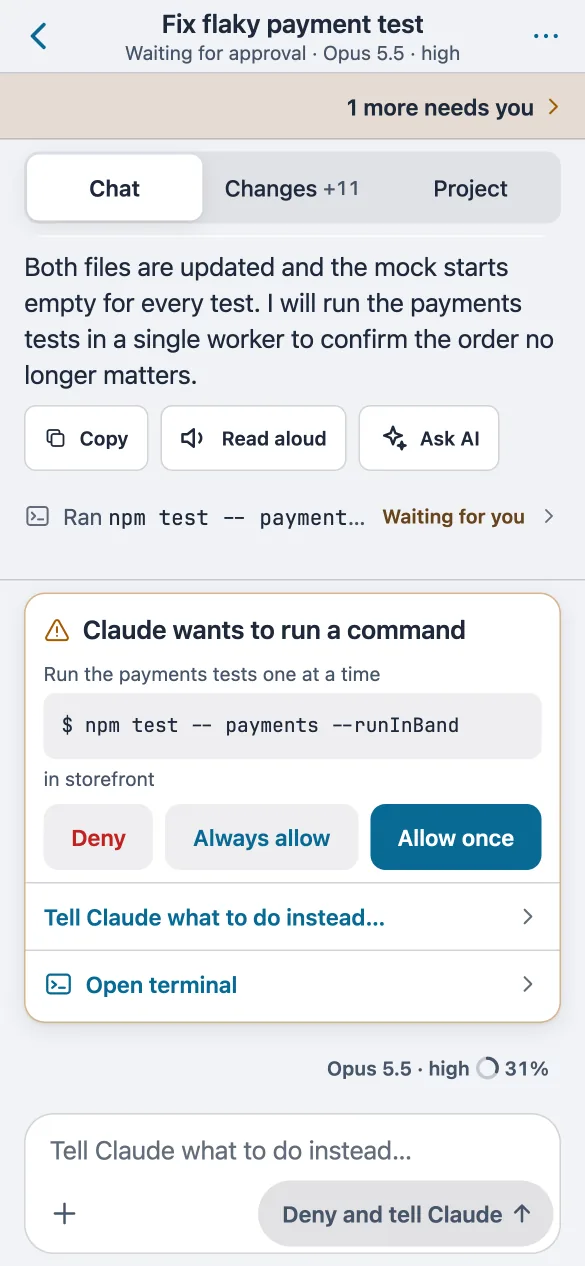
Answer it there
Each session reads as a chat. Approvals and questions arrive as cards you can answer, and you can send the next prompt.
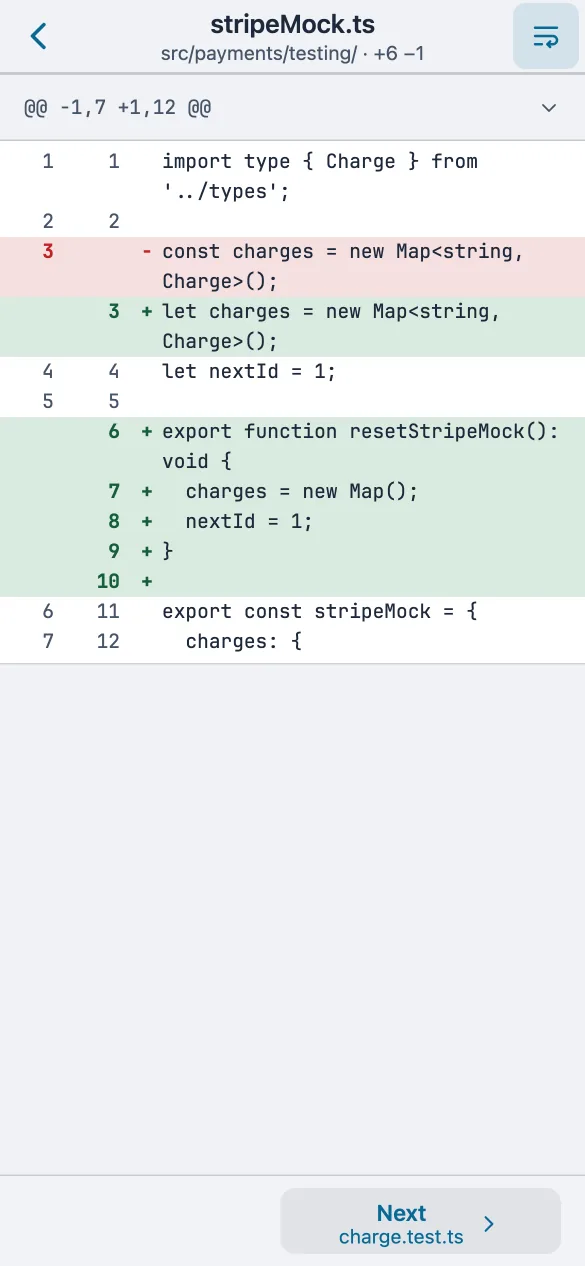
See what changed
The files a session edited, down to the diff, plus its project files to browse and search. Read-only.
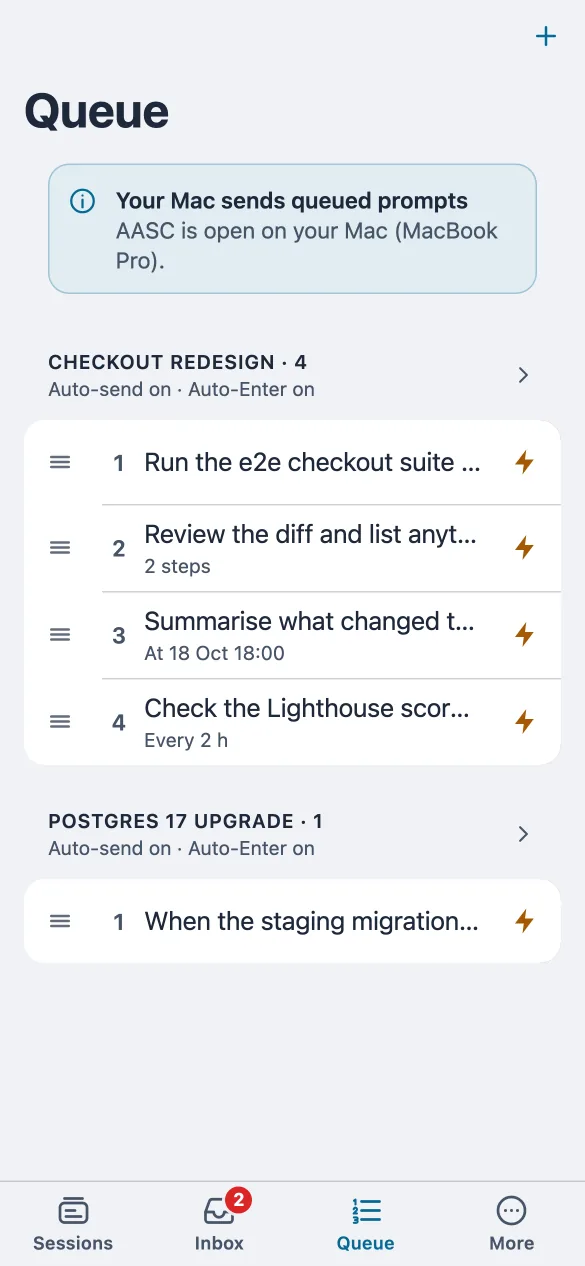
Line up the next prompt
The same queue as your desktop: reorder, edit, or send a prompt now.


Sessions that need you are listed first, an Inbox collects what is waiting, and More holds your history, saved prompts and agenda. A session's terminal opens full screen, with a key bar for the keys a phone keyboard lacks.
In a phone browser, today
Any phone browser works with the desktop app or the npm version. You get the same layout as the app.
- Set a password: in the desktop app's setup wizard, or with
npm run set-password. - Share the sessions you want on the phone with the share button in each session's header.
- On the phone, open
http://<your computer's address>:3333and sign in.
The AASC app, in private testing
An app for Android and iPhone is being tested now. It pairs with a code instead of a password, and finds your computer on your home network or over Tailscale.
Pairing a phone
- On your computer, choose Pair a phone in the devices menu. A QR code appears; it works once, for two minutes.
- Scan it with the app.
- Check that both screens show the same 6-digit code, then allow the phone on your computer.
Pairing is turned off while the app is in testing. You can revoke a phone from the devices menu at any time, which wipes its credentials.
What stays protected
- The phone sees only the sessions you share with it.
- Its credentials live in the iPhone Keychain or the Android Keystore, never in the web page.
- It can lock behind Face ID or a fingerprint.
- It never resizes your terminals, and project files are read-only.
The details are in the privacy note.